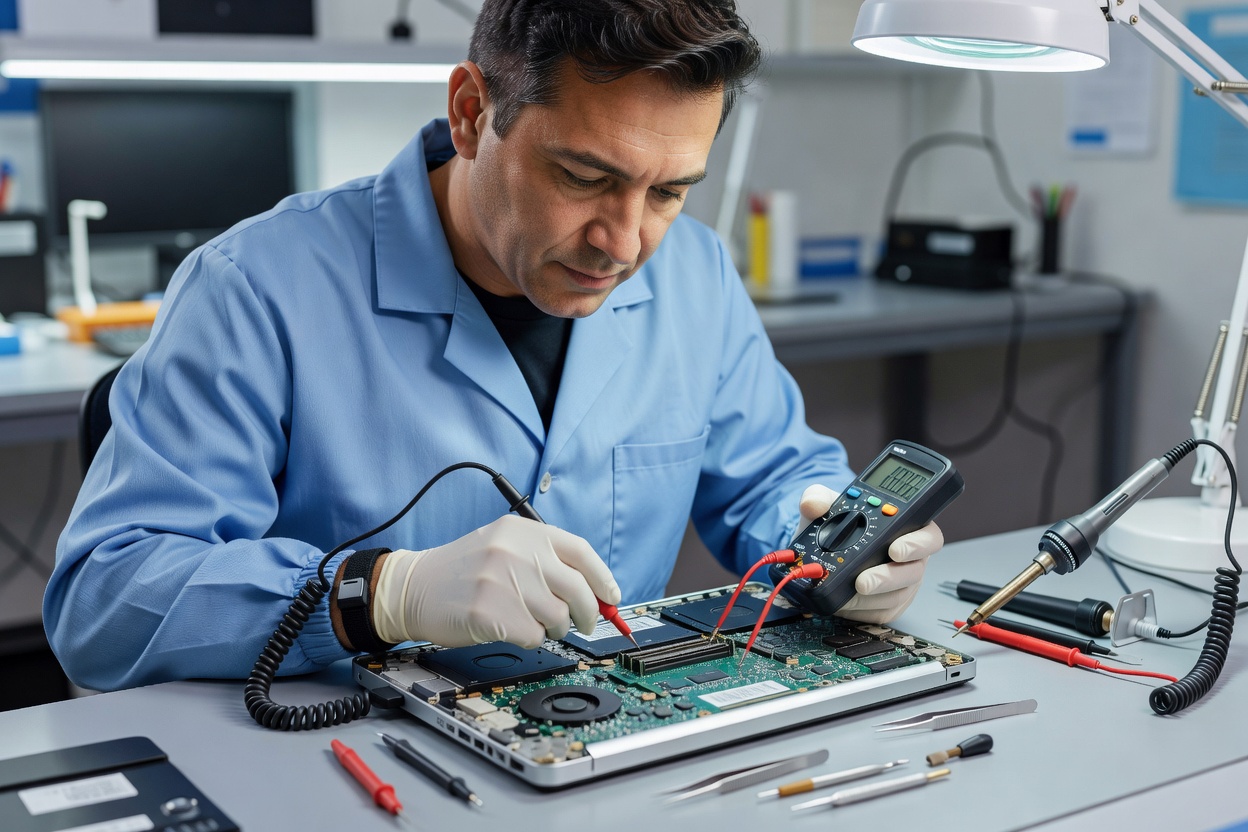
Preventative Maintenance vs. Reactive Emergency Repairs
In most workplace environments, hardware only gets attention once it refuses to turn on, starts spinning its internal fans like a jet engine, or repeatedly disconnects from the external monitor midway through a client presentation. Waiting for hardware to fail before taking action is expensive, stressful, and entirely avoidable.
Routine preventative maintenance treats office hardware the way you would treat any essential building system. Regular physical inspections catch frayed cables before they spark, identify blocked ventilation louvers before heat degrades the internal silicon, and identify failing laptop batteries before they swell and damage touchpads. It changes the nature of support from chaotic firefighter responses to quiet, scheduled care.
Reactive Support Model
- Issues addressed only after workflow is blocked
- Emergency hardware purchases at retail prices
- High stress for staff and disruption to deadlines
- Unclear maintenance logs and missing asset records
Preventative Care Model
- Scheduled quarterly thermal and port checkups
- Staggered replacement of worn peripherals
- Predictable workplace budgets and calm operations
- Clear health documentation for every serial number
Core Physical Maintenance Tasks
Office technology operates in spaces with varying air quality, dust accumulation, and frequent physical handling. We organize our routine support routines into distinct physical and logical checkpoints:
1. Dust Extraction and Thermal Hygiene
Even in clean office buildings, laptop fans and workstation cooling ducts pull in microscopic lint and dust particles. Over six to twelve months, this forms a felt-like barrier across heat sink fins. When airflow drops, processors automatically throttle their clock speeds to prevent overheating, making fast computers feel sluggish. Periodic antistatic vacuuming and gentle compressed air cleaning restore original cooling efficiency.
2. Port Integrity and Contact Cleaning
USB-C and Thunderbolt connectors are precision micro-interfaces. Pocket lint, paper dust, and oxidation on connector pins frequently cause intermittent charging or single-monitor dropouts. We inspect and gently clean connection ports on docks, monitors, and laptops with specialized contact solvent to restore solid signal continuity.
3. Display Panel Calibration & Cable Health
Over time, monitors can drift in color temperature or develop loose internal power sockets from being adjusted. We check power connector fitment, re-tension loose monitor arm friction bolts, and test HDMI/DisplayPort handshakes under high refresh rates.
Ideal For
- Offices experiencing frequent dock or display disconnects
- Laptops exhibiting loud fan noise or battery swelling
- Workspaces with shared hot-desks and heavy cable wear
- Teams wanting documented hardware maintenance logs
What to Know
- Thermal cleaning should only use non-conductive tools
- Battery swelling requires immediate, safe isolation
- Firmware updates for docks resolve 80% of sleep-wake bugs
- Keyboard and trackpad hygiene extends switch longevity
Standard Device Health Audit Sequence
When we perform a scheduled support walk-through across an office, every machine is checked against a structured routine:
| Component | Inspection Method | Corrective Action |
|---|---|---|
| Battery & Power | Cycle count analysis, casing flatness inspection | Retire swollen cells; replace degraded OEM batteries |
| Cooling System | Fan acoustic check, thermal vent inspection | Clean intake louvers, clear internal lint accumulation |
| Dock & Ports | Wiggle test under 4K video load, pin inspection | Clean port contacts; replace strained host tether cables |
| Display Mounts | Hex bolt tension check, VESA plate security | Re-tighten counterbalance springs to eliminate monitor droop |
| Firmware Status | Verify dock, monitor, and system BIOS levels | Apply stable manufacturer patches to prevent sleep drops |
Knowing When to Repair vs. When to Replace
A key part of honest technical maintenance is knowing when further repairs are a poor investment. If a machine requires a third motherboard repair or replacement parts cost more than 50% of the device's remaining depreciated value, we advise transitioning that machine toward our lifecycle replacement planning process.
Experiencing intermittent dock or display issues?
Tell us what is glitching in your office, and let our support specialists help you diagnose the root cause.
Schedule a Maintenance Review