Why thoughtful installation sets the tone for the entire office
When a team expands into a new space or reorganizes their existing layout, hardware installation is often treated as the final scramble. Boxes get unpacked in a hurry, power cords are draped over desk edges, and monitor heights are left at whatever factory setting they emerged with. It might work on Monday morning, but by Wednesday someone kicks a power brick under their foot, or a monitor starts flickering because a strained HDMI cord pulled loose from its dock.
A methodical technology installation eliminates that friction before it starts. It begins with understanding how power, display data, and peripheral accessories travel from the floor box all the way up to the keyboard. By planning the cable routes, balancing electrical draw across circuit tracks, and securely fastening docks beneath the desk surface, you transform a cluster of wires into a reliable, invisible utility.
Three Tiers of Workplace Installation
01. Basic Single-Device Setup: Unpacking and placing an individual machine, configuring peripheral pairing, verifying display scaling, and dressing local surface cables.
02. Multi-Desk Office Deployment: Systematic fit-out of 10 to 100+ workstations with uniform docking hubs, monitor clamp alignments, labeled network patch cables, and cable basket distribution.
03. Room-Based AV Integration: Precision wall mounting of high-definition displays, acoustic bar placement, flush table cable cubbies, and integrated conference controllers.
Key Elements of a Modern Desk Fit-Out
The heart of today's flexible office is the universal workstation. Whether a team member uses an ultraportable laptop or a creative workstation, their physical desk experience should be predictable. Here are the hardware foundations we focus on during deployment:
1. Docking Station Positioning and Power Isolation
Docks should never sit loosely on the desk surface where coffee spills or sleeve snags can displace them. Mounting docks to the underside of the desk frame keeps desk tops clutter-free while leaving the host cable accessible at the front edge. It also allows heat from power bricks to dissipate safely into open air rather than being trapped in carpet fibers.
2. Ergonomic Display Mounting & Cable Articulation
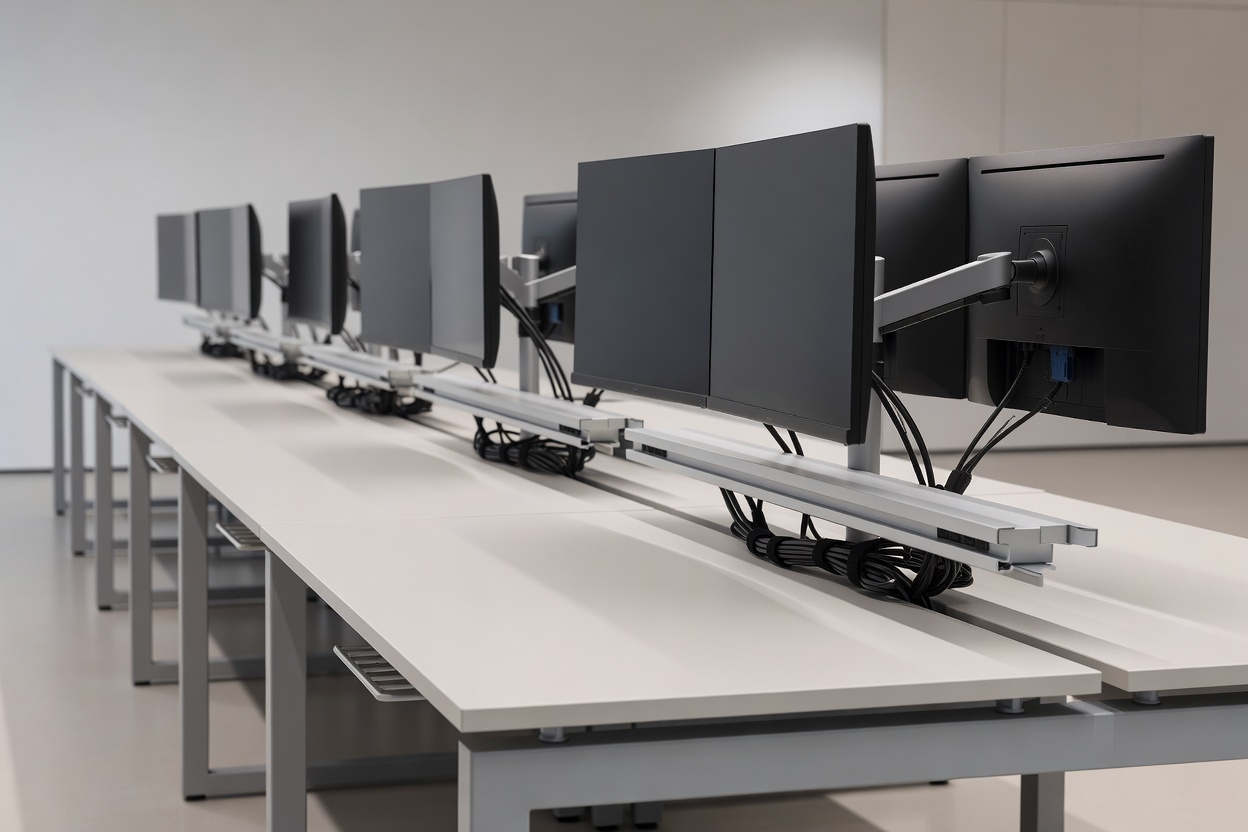
Modern dual-display configurations require sturdy monitor arms that support the exact weight of each screen. We verify that cables routed through internal arm channels have enough slack so users can raise, lower, or tilt their screens without tensioning the video ports. Strained video connectors are the single most common cause of intermittent display blanking.
3. Under-Desk Cable Management Trays
High-capacity wire trays or fabric hammocks suspended under the worktop house transformer bricks, surge protectors, and slack cable coils. Every run is secured with reusable hook-and-loop ties—never sharp zip ties that can crimp data lines or slice into outer jacketing during future adjustments.
Best Suited For
- Office relocations and new workspace build-outs
- Transitioning from fixed desktop towers to flexible docking hubs
- Standardizing dual-monitor desk heights across departments
- Eliminating tripping hazards and dangling floor wires
What to Keep in Mind
- Desk clamp compatibility with beveled or glass edges
- Total power wattage required per multi-gang cluster
- Monitor input formats (DisplayPort vs HDMI vs USB-C)
- Sufficient vertical cable spine length for sit-stand motorized desks
Practical Installation Checklist
Before declaring any workstation or collaboration space ready for daily duty, our technicians run through a standard commissioning sequence:
| Phase | Physical Task | Verification Standard |
|---|---|---|
| 01. Mechanical | Mount arms, clamp docks, seat power strips | Zero wobble under hand pressure, smooth arm articulation |
| 02. Cabling | Route video, Ethernet, and power through trays | No cables under foot tension; motorized desks rise freely |
| 03. Electrical | Balance phase loads across multi-desk banks | Surge protectors functional, circuit breakers unburdened |
| 04. Commissioning | Connect test laptop across Windows & Mac hardware | Dual 4K displays light up at 60Hz; Gigabit Ethernet connects |
| 05. Handover | Affix port labels and clear user connection guide | Staff can plug in one labeled cable and begin working |
Common Installation Traps to Avoid
One common mistake is using generic low-bandwidth cables bundled in retail monitor boxes. While they might display an image at 30Hz, users will quickly report mouse lag or eye fatigue. Another frequent issue is neglecting height-adjustable sit-stand desks: if cables are tied tight while the desk is lowered, raising the desk to full standing height will literally rip cables out of wall sockets. We always commission motorized desks at maximum extension.
Planning a physical office refresh or new space fit-out?
Let’s talk through your desk counts, monitor setups, and layout requirements to ensure a smooth, professional rollout.
Speak With Our Installation Team